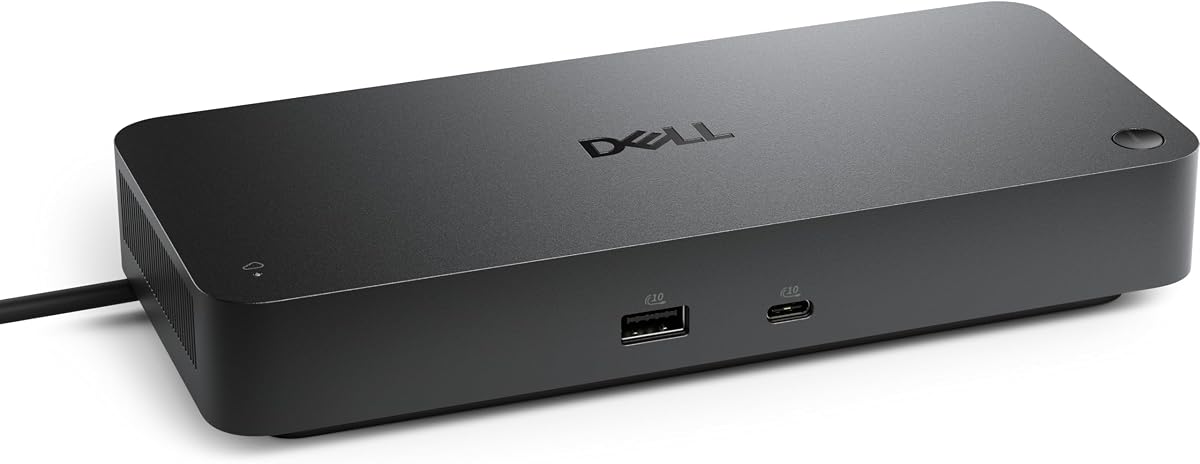
Dell Pro Thunderbolt 4 Smart Dock SD25TB4
4.2Editor score
130W Charging Support
Thunderbolt 4 Ports
Remote Wi-Fi Management
This guide compares the top 10 docking stations for Dell Pro 14 Plus laptops focusing on power delivery display support connectivity options and design
Finding the right docking station for your Dell Pro 14 Plus is essential for maximizing productivity and maintaining a clean workspace setup today.
We evaluated ten top rated models based on power output display capabilities connectivity options and build quality to help you find the perfect match.
Each pick highlights key strengths and trade-offs so you can choose confidently while keeping in mind that availability and specifications may change over time.
4.2Editor score

4.5Editor score

4.3Editor score
Below is a detailed side-by-side comparison of the ten leading docking stations compatible with the Dell Pro 14 Plus to help you assess key specifications quickly.

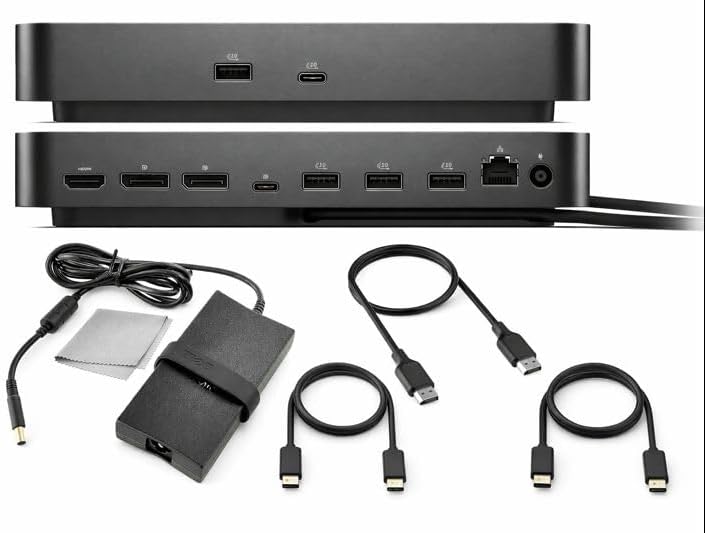


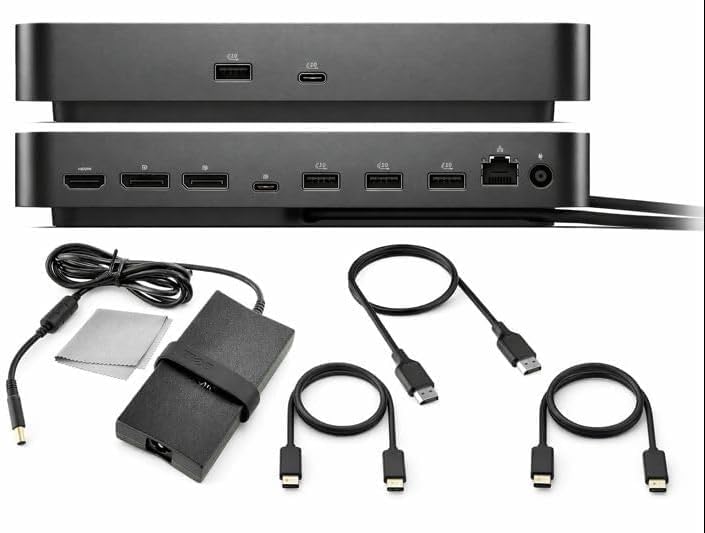

This Dell Pro Dock stands out as the top choice for users seeking a reliable and powerful connection hub for their Dell Pro 14 Plus systems.
We may earn a commission when you buy through this link, at no additional cost to you.
It offers up to 100W of power delivery ensuring your laptop stays charged while you connect multiple displays and peripherals seamlessly.
While it is priced higher than some competitors the build quality and IT manageability justify the investment for professional environments.
If you prioritize stability and future-proof connectivity this model delivers exceptional performance with minimal disruption to your workflow.
The dock provides up to 100W charging which is sufficient for most modern laptops and includes significant standby power savings.
IT teams can manage these docks remotely improving efficiency and reducing downtime without needing physical access to each device.
We may earn a commission when you buy through this link, at no additional cost to you.
The Dell Pro Smart Dock SD25 emphasizes security and manageability making it ideal for businesses that handle sensitive data daily.
We may earn a commission when you buy through this link, at no additional cost to you.
Its WPA-3 encryption and hardware-based security features ensure your network connection remains protected against potential threats effectively.
Business users will appreciate the ability to update firmware remotely which reduces interruptions and keeps devices running smoothly.
Home users might find the advanced management features unnecessary but the solid build and flexible cable routing remain beneficial.
Built-in hardware encryption and WPA-3 protocols safeguard your data and secure communication channels against unauthorized access.
Schedule updates and manage configurations over Wi-Fi to maintain compliance without disturbing end users during work hours.
We may earn a commission when you buy through this link, at no additional cost to you.
For creatives and data professionals needing maximum bandwidth and video capacity this Thunderbolt 4 dock delivers top-tier performance.
We may earn a commission when you buy through this link, at no additional cost to you.
It supports up to four 4K monitors and offers 130W charging which is perfect for high-performance laptops and demanding workloads.
The dual Thunderbolt 4 ports allow daisy chaining devices which reduces clutter and keeps your desk organized effectively.
While costly this dock is worth the investment if you require the fastest data transfer and highest resolution display support available.
Connect up to four 4K displays and charge your laptop at 130W to handle intensive graphic or data tasks effortlessly.
Thunderbolt 4 ensures compatibility with next generation peripherals and provides versatile data chaining options for advanced setups.
We may earn a commission when you buy through this link, at no additional cost to you.
Anker offers a robust alternative with 14 ports that cater to users needing diverse connections without relying on a single ecosystem.
We may earn a commission when you buy through this link, at no additional cost to you.
With 160W total output it can charge your laptop and multiple peripherals simultaneously ensuring everything stays powered during long work sessions.
It supports dual 4K displays at high refresh rates which is great for multitasking on standard laptops with HDMI or DisplayPort modes.
Windows and ChromeOS users will find it versatile though Mac and Linux compatibility may limit its usefulness in mixed environments.
Fourteen ports including USB-A and USB-C options give you room to connect all essential devices without buying extra hubs.
Achieve data speeds up to 10Gbps while maintaining strong charging power for connected devices across three USB-C ports.
We may earn a commission when you buy through this link, at no additional cost to you.
This bundle ensures you have every necessary cable included reducing the hassle of hunting down compatible adapters after purchase.
We may earn a commission when you buy through this link, at no additional cost to you.
With a 100W adapter and multiple video cables included you can plug and play immediately without worrying about missing components.
The inclusion of a cleaning cloth shows thoughtful attention to maintaining your setup which is a nice touch for office use.
If you want convenience and a complete package this bundle delivers everything needed for a clean multi-monitor workspace quickly.
All essential HDMI and DisplayPort cables are included so you can start working immediately without extra purchases.
The included 100W adapter ensures your laptop stays charged while you connect multiple external monitors and peripherals.
We may earn a commission when you buy through this link, at no additional cost to you.
The WD25Z model stands out with an impressive 180W power output ensuring even the most demanding laptops stay fully powered at all times.
We may earn a commission when you buy through this link, at no additional cost to you.
Users report a high satisfaction rating suggesting it delivers reliable performance and stable connections for daily tasks effectively.
Its compact design fits easily on crowded desks while still providing the power and connectivity needed for multiple devices.
Choose this model if you need maximum power headroom and trust Dell engineering to provide a stable long-term solution.
With 180W of total power this dock supports heavy workloads and high-power accessories without throttling laptop performance.
Despite its power the dock maintains a compact profile that keeps your desk uncluttered and organized efficiently.
We may earn a commission when you buy through this link, at no additional cost to you.
This version of the WD25 includes a three-year warranty which offers peace of mind for long-term business or personal use.
We may earn a commission when you buy through this link, at no additional cost to you.
It supports dual 4K displays and includes a 2.5GbE Ethernet port for stable high-speed internet connections during video calls.
The included HDMI and DisplayPort cables mean you can start using it immediately without needing to purchase extra accessories.
If long-term reliability is a priority this model provides solid performance with added protection against potential hardware failures.
A three-year warranty covers hardware issues giving you confidence that your investment is protected for years of work.
The 2.5GbE Ethernet port delivers faster and more stable wired internet compared to standard gigabit Ethernet options.
We may earn a commission when you buy through this link, at no additional cost to you.
This bundle combines the SD25 smart dock with essential accessories earning a perfect user rating for ease of use and performance.
We may earn a commission when you buy through this link, at no additional cost to you.
With 130W charging you can power demanding laptops and connect up to four displays via HDMI and DisplayPort ports easily.
The inclusion of HDMI USB-C and DisplayPort cables ensures you have everything needed for a full setup immediately out of the box.
Whether for office or home use this package provides comprehensive connectivity and security features with a strong track record.
All necessary video and data cables are included so you can connect multiple screens and devices without delays.
Built-in 2.5GbE Ethernet provides reliable high-speed connectivity that outperforms standard wireless or gigabit connections.
We may earn a commission when you buy through this link, at no additional cost to you.
The WD25 Pro Dock maintains high user satisfaction with a strong 100W power delivery and reliable data connection capabilities.
We may earn a commission when you buy through this link, at no additional cost to you.
It features a 2.5GbE Ethernet port which ensures stable internet performance crucial for video conferencing and cloud work.
With four USB-A ports and two USB-C ports it offers enough variety for peripherals without needing extra hardware adapters.
A three-year warranty adds value making it a dependable choice for those seeking consistent performance over several years.
The 2.5GbE Ethernet port ensures faster and more stable internet speeds than standard options available on many docks.
Six USB ports allow you to connect keyboards mice drives and other accessories simultaneously with ease.
We may earn a commission when you buy through this link, at no additional cost to you.
This model supports up to four WQHD displays making it ideal for multitaskers who need multiple views on one desk.
We may earn a commission when you buy through this link, at no additional cost to you.
It offers six USB ports which is a generous count allowing you to connect all your peripherals without extra hubs.
The ambidextrous cable routing lets you position the connection on either side for a cleaner and more ergonomic workspace.
With sustainable materials and reduced power consumption it also aligns well with modern green office initiatives effectively.
Support for four WQHD displays via HDMI and DisplayPort lets you organize complex tasks across multiple screens.
Made with recycled plastic and renewable packaging this dock reduces environmental impact while delivering strong performance.
We may earn a commission when you buy through this link, at no additional cost to you.
Selecting the right docking station involves understanding your power display and connectivity needs to ensure seamless integration with your laptop.
Ensure the dock provides enough wattage to charge your Dell Pro 14 Plus while running multiple devices simultaneously for optimal performance.
Look for at least 100W power delivery to avoid needing a separate laptop charger during work sessions.
Check if the docking station supports the number and resolution of external monitors you need whether dual 1080p or quad 4K displays.
Choose models with HDMI 2.1 and DisplayPort 1.4 for higher refresh rates and clarity on modern screens.
Count the number of USB-A and USB-C ports available to make sure you can connect all your keyboards mice and external drives at once.
Prioritize docks with USB 3.2 Gen 2 ports for faster data transfer speeds when working with large files.
A built-in Ethernet port offers more stable internet speeds than Wi-Fi which is essential for video calls and cloud backups.
Look for 2.5GbE support to ensure your wired connection does not become a bottleneck for your network speeds.
Opt for docks with durable connectors and a compact footprint to prevent physical damage and save space on your desk.
Consider models with ambidextrous cables for flexible routing options that improve cable management and aesthetics.
Many modern docks are built with recycled materials and lower power consumption helping you reduce environmental impact and energy costs.
Check for certifications like recycled packaging or reduced standby power usage when selecting your hardware.
A solid warranty period like three years provides peace of mind and ensures support if hardware issues arise over time.
Review the manufacturer's support channels to confirm you can get timely help if you encounter setup problems.
For business users docks with remote management and security features like encryption help IT teams maintain devices efficiently and securely.
These features might be unnecessary for home users but they add significant value in enterprise environments.
Connect the docking station to a power outlet and use the provided USB-C cable to link it to your Dell Pro 14 Plus laptop.
Attach all your peripherals such as monitors keyboards and mice to the appropriate ports before powering on your laptop to ensure seamless detection.
Keep the dock and its vents clean with a microfiber cloth to prevent dust buildup which can affect performance over time.
Yes most USB-C docking stations work with the Dell Pro 14 Plus as long as the laptop supports power delivery and DisplayPort Alt Mode. Check the dock specs to ensure 100W charging support for best results.
Most Dell Pro docks support up to four displays depending on the resolution. For example dual 4K or four WQHD monitors are possible with HDMI 2.1 and DisplayPort 1.4 ports.
Thunderbolt 4 is ideal for high-speed data and daisy chaining devices but standard USB-C docks work well for most users who do not need extreme bandwidth.
Yes many docking stations offer multiple USB ports that can charge smartphones and accessories simultaneously while powering the main laptop through the main cable.
While most docks work with Linux universal models may not support advanced features. Check compatibility notes as some brands like Anker may limit Linux support for specific functions.
Bundles include all necessary cables such as HDMI and DisplayPort which saves you from buying accessories separately and ensures you can set up your desk immediately.
Modern docks use technologies to reduce standby power consumption. Many Dell models offer up to 72% power reduction when the connected device is not actively in use.
Business users can utilize management consoles to update firmware and configure settings over Wi-Fi which helps maintain security and reduces physical maintenance needs.
The Dell Pro Laptop Docking Station WD25 leads the pack with its balanced power and manageability making it the top choice for most professionals.
For those needing higher speed and more display options the Thunderbolt 4 dock offers premium features that justify the cost for demanding workloads.
Always check current availability and specifications before purchasing since model details can change and your needs may vary based on your workspace setup.