
Philips 24 Inch Computer Monitor
4.6Editor score
Full HD resolution
Bezel-free design
Flicker-free technology
Finding the right external display for your MacBook Pro can significantly enhance your workflow and creative output. Whether you are a designer, developer, or everyday user, the right monitor offers more screen real estate and better color fidelity.
We have carefully selected and analyzed ten top-rated monitors that integrate seamlessly with macOS. Our comparison focuses on resolution, connectivity options like USB-C and Thunderbolt, and color accuracy to ensure compatibility with Apple devices.
Each pick in this list highlights specific strengths such as budget friendliness, premium features, or specific use cases like gaming or professional design. Please note that product prices and availability can change frequently over time.
4.6Editor score
5.0Editor score

4.3Editor score
As an Amazon Associate we earn from qualifying purchases.
The following table provides a side-by-side comparison of all ten monitors selected for this guide, highlighting key specifications to help you quickly identify the model that best fits your needs and budget.



This monitor stands out as the top choice for professional users who demand precise color representation and seamless connectivity with their MacBook Pro. With a perfect rating, it delivers exceptional performance for creators and developers alike.
We may earn a commission when you buy through this link, at no additional cost to you.
The Thunderbolt connectivity ensures you can drive the display while charging your laptop with a single cable. The factory-calibrated color accuracy with 98% Display P3 coverage means your designs look exactly as intended.
While the price is higher than standard displays, the included features like the KVM switch allow you to control two computers with one keyboard and mouse. This reduces desk clutter and streamlines your workflow significantly.
If you need a reliable and premium display for professional work, this model is the ideal investment. It balances performance, connectivity, and usability better than any other option currently available for Mac users.
Factory calibration ensures your work looks true to life straight out of the box without needing additional tweaks.
A single Thunderbolt cable handles video, data, and power delivery making your desk setup cleaner and more efficient.
We may earn a commission when you buy through this link, at no additional cost to you.
BenQ has designed this monitor specifically for Mac users, offering unique features like direct keyboard control for brightness and volume. The 4K resolution ensures sharp text and vibrant images for any creative task.
We may earn a commission when you buy through this link, at no additional cost to you.
With dual USB-C ports delivering up to 90W power, you can charge your MacBook Pro while connecting other devices like an iPad. This hub functionality reduces the need for additional dongles or hubs on your desk.
The color tuning is calibrated to match MacBook displays, ensuring consistency across screens. This is particularly useful for designers who need to trust that what they see is what their customers will see.
For Mac users seeking a high-end experience with tailored features, this monitor is an excellent choice. It justifies its price with thoughtful design elements that enhance daily productivity and comfort.
Control monitor settings directly from your MacBook keyboard for a seamless user experience without reaching for external buttons.
Connect multiple displays easily through the USB-C ports to expand your workspace without cable clutter.
We may earn a commission when you buy through this link, at no additional cost to you.
This monitor offers incredible value for users who need a reliable secondary screen without breaking the bank. The Full HD resolution is sufficient for general productivity tasks and media consumption.
We may earn a commission when you buy through this link, at no additional cost to you.
The VA panel provides deeper blacks and better contrast compared to standard IPS screens, making images pop. The bezel-free design on three sides allows for a multi-monitor setup that looks cohesive and professional.
While it lacks advanced features like USB-C connectivity, it remains a strong choice for budget-conscious buyers. It delivers a flicker-free experience that reduces eye strain during long work sessions.
If you are looking for a cost-effective way to extend your MacBook display, this is a solid option. It balances performance and price effectively for everyday computing needs.
Optimize text viewing for documents by reducing blue light and adjusting contrast for a paper-like reading experience.
Colors remain consistent even when viewed from the side which is ideal for collaborative work environments.
We may earn a commission when you buy through this link, at no additional cost to you.
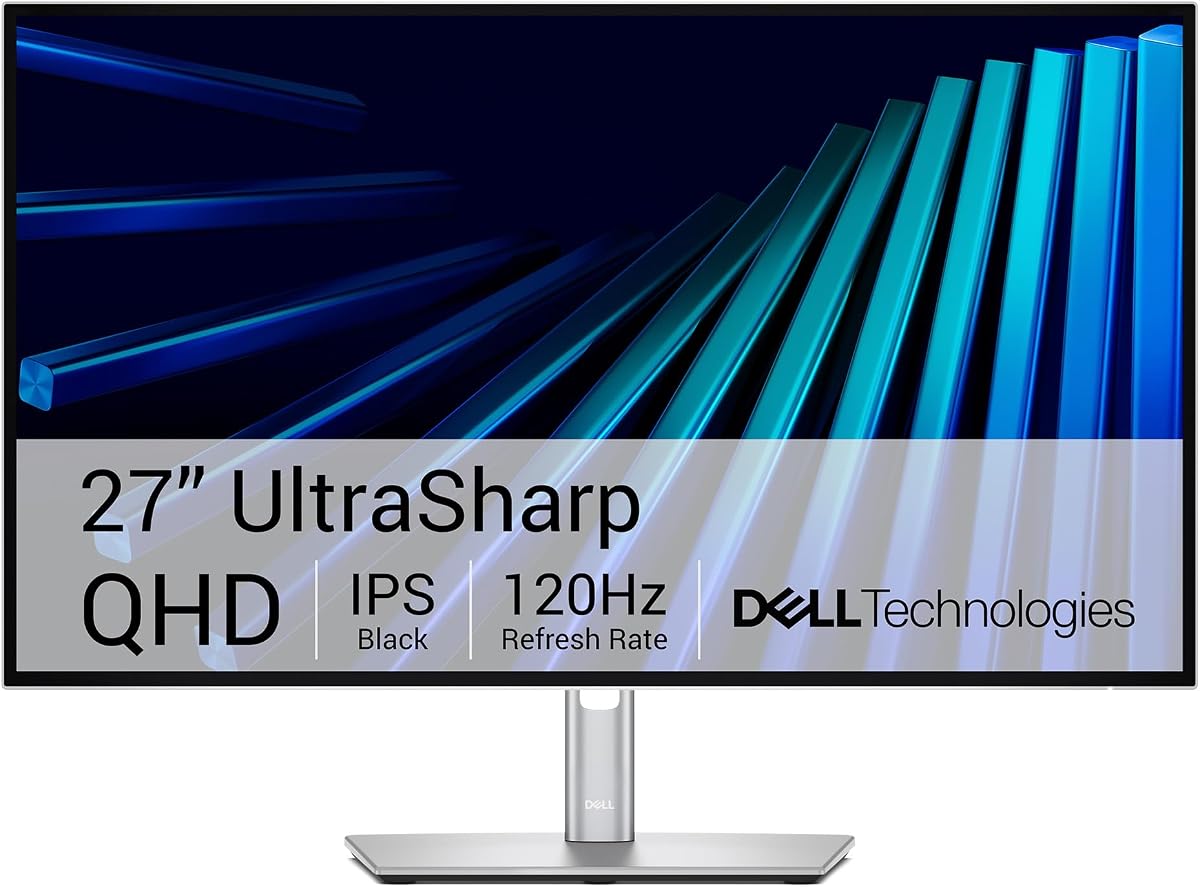
This Dell monitor blends high resolution with a smooth refresh rate making it versatile for both work and entertainment. The 4K screen ensures text is sharp while the 120Hz rate provides smooth scrolling.
We may earn a commission when you buy through this link, at no additional cost to you.
ComfortView Plus reduces harmful blue light without sacrificing color accuracy which is great for all-day use. The built-in audio is surprisingly good providing detailed sound for meetings or videos.
With USB-C connectivity that delivers up to 65W you can easily connect your laptop without extra adapters. This makes it a convenient choice for MacBook Air users who need a portable setup.
It is an excellent middle-ground option for those who want premium features at a reasonable price. It handles daily tasks well while offering a pleasant viewing experience for media and gaming.
Spacious audio features deeper frequency response than previous models reducing the need for external speakers.
AMD FreeSync Premium ensures smooth visuals by syncing refresh rates with your graphics output eliminating screen tearing.
We may earn a commission when you buy through this link, at no additional cost to you.
LG delivers a strong performer for creatives with high DCI-P3 color coverage and HDR support. The 4K display provides ample space for editing software and timelines without feeling cramped.
We may earn a commission when you buy through this link, at no additional cost to you.
The Switch app allows you to split your screen into multiple sections which is helpful for multitasking between documents and browsers. It also integrates with webOS for direct streaming without needing your computer.
With 90W power delivery this monitor can charge your MacBook Pro while you work. The built-in speakers offer a decent upgrade over standard laptop audio for video editing calls.
For those focused on visual work and multitasking this monitor offers the tools you need. It balances color accuracy and functionality to support a productive creative environment efficiently.
Customize your workspace with mouse clicks to manage layouts and settings easily from the display itself.
Reduced input lag ensures gameplay and video editing remain responsive and fluid during critical moments.
We may earn a commission when you buy through this link, at no additional cost to you.
This compact monitor is perfect for users who prioritize smooth motion and responsiveness in their visual experience. The 144Hz refresh rate makes scrolling and gaming feel significantly more fluid.
We may earn a commission when you buy through this link, at no additional cost to you.
The ergonomic stand allows for height tilt and pivot adjustments which helps maintain a healthy posture during long hours. TÜV certification for eye comfort ensures reduced strain during daily tasks.
While it does not have USB-C connectivity it offers reliable HDMI connection for most laptops with adapters. The integrated speakers provide a convenient audio solution for basic media playback.
It is a great choice for students or casual users who want a responsive screen at a low cost. The combination of performance and comfort features makes it a reliable daily driver.
Certified to reduce harmful blue light emissions while maintaining image quality for safer extended viewing.
High refresh rate and quick response times eliminate blur and tearing for sharper moving images.
We may earn a commission when you buy through this link, at no additional cost to you.
The white design of this monitor complements modern office setups and Mac peripherals perfectly. It offers a clean look that blends well with other devices on your desk.
We may earn a commission when you buy through this link, at no additional cost to you.
With 4K resolution and HDR10 support you get sharp details and rich colors for both work and entertainment. The IPS panel ensures colors remain consistent across wide viewing angles.
Although it lacks USB-C power delivery it still offers multiple ports for flexible connectivity. The Onscreen Control app helps you manage screen layouts and monitor settings easily.
If aesthetics are important to your workspace this is a stylish choice that does not compromise on display quality. It serves well for general productivity and media viewing needs.
Minimal bezels create an immersive viewing experience and look great in multi-monitor setups.
Adjust color temperature to reduce eye strain when reading text-heavy documents or web pages.
We may earn a commission when you buy through this link, at no additional cost to you.
This monitor is engineered for professionals who need consistent color across different screens. The factory calibration ensures high accuracy right out of the box without extra adjustments.
We may earn a commission when you buy through this link, at no additional cost to you.
The matte panel reduces glare effectively making it suitable for bright environments. USB-C connectivity provides power and data through one cable keeping your desk tidy and efficient.
Uniformity technology ensures that brightness and color are consistent across the entire screen. This is crucial for designers who need to trust that shadows and highlights are accurate.
For creative professionals who prioritize color fidelity and usability this is a top-tier option. It delivers a reliable and precise visual experience for detailed design work.
ICCsync ensures your monitor matches Mac profiles automatically when switching between different color modes.
Diffuses ambient light to preserve contrast and protect eyes during long design sessions.
We may earn a commission when you buy through this link, at no additional cost to you.
A 32-inch display offers plenty of real estate for multitasking and immersive viewing experiences. The borderless design enhances the visual impact by minimizing distractions at the edges.
We may earn a commission when you buy through this link, at no additional cost to you.
FreeSync technology helps keep graphics smooth which is beneficial for gaming and video playback. The eye care features reduce flicker and blue light to make long sessions more comfortable.
While the refresh rate is standard it provides fluid motion for general use and casual gaming. The larger canvas allows you to keep multiple windows open without constant switching.
This monitor is ideal for users who want a large workspace without spending a fortune. It balances size and performance effectively for both home and office environments.
Multi-monitor setups line up seamlessly with minimal bezels for a continuous visual field.
Adjusts image settings instantly to highlight details and optimize contrast for gaming scenarios.
We may earn a commission when you buy through this link, at no additional cost to you.
This monitor offers a sharp QHD resolution that delivers clear text and detailed images. The 100Hz refresh rate ensures smooth motion making it suitable for light gaming and scrolling.
We may earn a commission when you buy through this link, at no additional cost to you.
USB-C connectivity with low power delivery allows for easy data transfer though it may not charge a laptop fully. It serves well as a secondary screen for extended workflows.
HDR10 support enhances color and brightness in compatible content providing a more vivid visual experience. The slim stand design saves desk space while keeping the screen stable.
For those needing a balance of resolution and price this is a solid choice. It provides a high-quality display that fits well into various professional and personal setups.
IPS technology provides vibrant colors that remain consistent even when viewed from different angles.
The ultra-slim stand minimizes clutter and maximizes your usable workspace on the desk.
We may earn a commission when you buy through this link, at no additional cost to you.
Selecting the right monitor involves understanding your specific needs regarding resolution, connectivity, and color accuracy. Here are key factors to consider when making your purchase.
Resolution determines how sharp your image looks and how much content you can fit on the screen. For MacBook Pro users 27-inch 4K displays are often the sweet spot for clarity and workspace.
Choose a size that fits your desk and budget while ensuring the resolution matches your workflow needs.
MacBooks primarily use USB-C or Thunderbolt for video output so ensure your monitor supports these ports for single cable connectivity. This simplifies your desk setup by combining video data and power.
Look for USB-C with Power Delivery to charge your laptop directly from the monitor.
If you work with images or video color accuracy is critical. Look for monitors with high sRGB or DCI-P3 coverage and factory calibration to ensure reliable colors.
Check color gamut specs to ensure the monitor can display the colors your Mac uses.
Higher refresh rates make motion smoother which is beneficial for scrolling and gaming. Standard 60Hz is fine for office work while 120Hz or higher offers a more fluid experience.
Prioritize refresh rate if you use your Mac for animation or fast-paced games.
An ergonomic stand allows you to adjust height, tilt, and pivot to suit your posture. This is important for preventing neck strain during long work sessions.
Ensure the monitor supports ergonomic adjustments for comfort.
Monitors with built-in USB hubs let you connect peripherals like keyboards or drives directly to the display. This reduces dongle usage and keeps your desk organized.
Check for available USB ports if you need extra connectivity.
Integrated speakers can reduce clutter but vary in quality. If you need high-quality sound for calls or videos external speakers may still be necessary.
Consider speaker quality if you plan to use the monitor for media consumption.
Features like flicker-free technology and low blue light modes help reduce eye strain. These are valuable if you spend many hours in front of the screen daily.
Look for TÜV certification or similar ratings for eye comfort.
To get the best experience, connect your monitor using a high-quality USB-C or Thunderbolt cable to support full data and power transfer. This ensures your MacBook is charged and the display is driven at its full resolution.
Adjust the screen height so the top of the monitor is at or slightly below eye level. This prevents neck strain and ensures you maintain a healthy posture during work.
Clean the screen regularly with a soft microfiber cloth and avoid harsh chemicals that might damage the coating. Keeping the display clean ensures consistent image quality and longevity.
Yes, for a seamless experience, you need a monitor with USB-C that supports video and Power Delivery. This allows you to connect one cable to your laptop to display video and charge the battery simultaneously.
4K offers more screen real estate for multiple windows but is not strictly necessary. Many developers prefer high pixel density which 4K provides, though QHD also offers sharp text.
Yes, most modern monitors work with a Mac using appropriate adapters if needed. However, native USB-C compatibility makes the setup much easier without extra cables.
Thunderbolt offers faster data transfer speeds than standard USB-C which is useful for external drives. It often includes higher power delivery for charging laptops efficiently.
Standard 60Hz is sufficient for basic work, but 100Hz or higher makes scrolling and animations smoother. If you use your Mac for gaming or animation, higher refresh rates are recommended.
Most monitors work automatically, but some manufacturers offer Mac-specific apps to manage brightness. Check the display settings in System Preferences to adjust resolution if needed.
We have reviewed ten top monitors ranging from budget-friendly options to premium professional displays. The Dell UltraSharp Thunderbolt model offers the best overall experience for creatives.
When choosing prioritize features that match your workflow such as color accuracy for design or refresh rate for gaming. Connectivity is key so ensure the monitor has the right ports for your setup.
Prices and availability change frequently so check current listings before making a purchase. We hope this guide helps you find the perfect display to enhance your MacBook Pro experience.